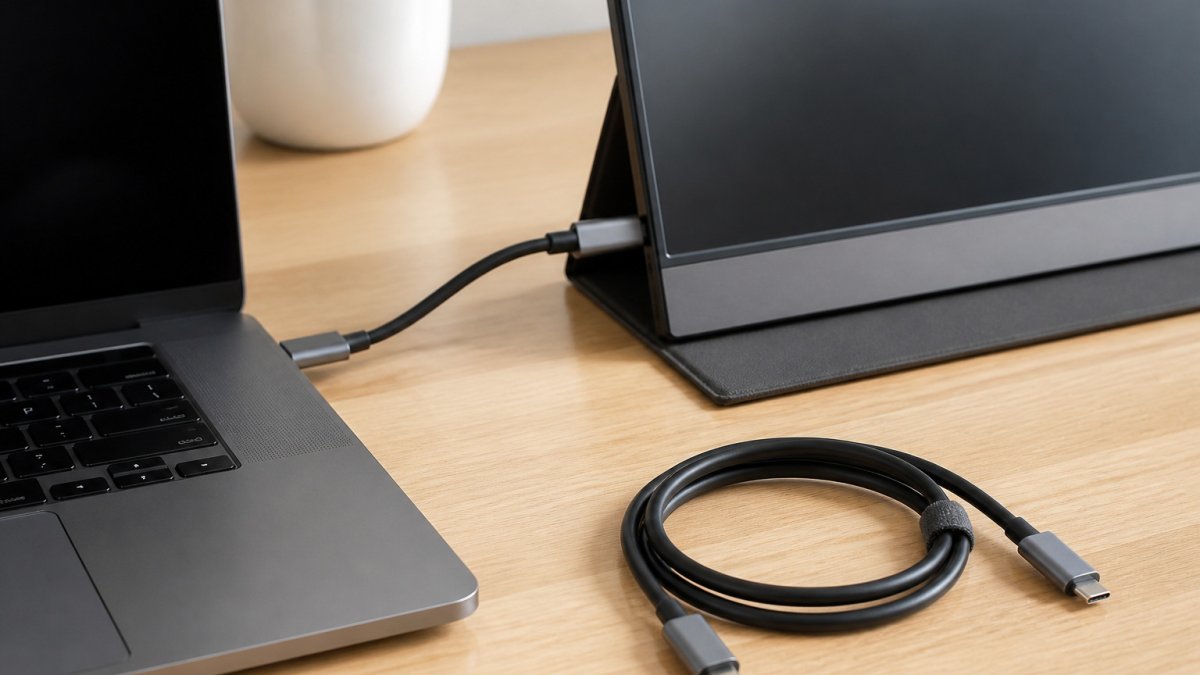
 how-to
How to Choose a USB-C Cable for a Portable Monitor
Last Updated: November 1, 2026
Quick Summary
To choose a usb-c cable for a portable monitor, first confirm it is labeled for video, not charging only, and that your device's port supports video output. Then check that the cable's wattage meets or exceeds the monitor's power draw, and keep the length short or choose an active cable for longer runs.
- Charging-only cables lack the wiring to send a display signal, so check the listing for video or DisplayPort support.
- Your device's USB-C port must support DisplayPort Alt Mode or video output, since some ports handle charging only.
- Match the cable's wattage rating to or above the monitor's power draw to avoid flicker or a blank screen.
- Passive cables work well under about one meter; use an active cable for longer runs at high resolution.
- If the screen stays blank, check the port before replacing the cable, since an unsupported port cannot be fixed by a new cable.
Table of Contents
- Why the Right USB-C Cable Matters for a Portable Monitor
- Confirm Your Cable Supports Video Output
- Check DisplayPort Alt Mode Support
- Match Power Delivery Wattage to the Monitor's Needs
- Choose a Cable Length That Holds Signal Quality
- A Step-by-Step Selection Checklist and Troubleshooting
- Order Your Portable Monitor Cable From Pemarch
- Frequently Asked Questions
Choosing the right USB-C cable for a portable monitor takes more than grabbing the nearest cable in your drawer. Many USB-C cables carry power but never send video, and a mismatched cable can leave your screen blank. This guide helps you check the details that actually decide whether a cable works, so you can buy with confidence.
Why the Right USB-C Cable Matters for a Portable Monitor
A portable monitor needs three things from one cable: a video signal, enough power, and a clean connection. USB-C looks the same on every cable, but the internal wiring can differ a lot. That is why a cable that charges your phone may still leave your monitor dark.
The good news is that you can check these details before you buy. The steps below walk through each one in order.
Confirm Your Cable Supports Video Output
Start here. If the cable cannot carry video, nothing else on the list matters.
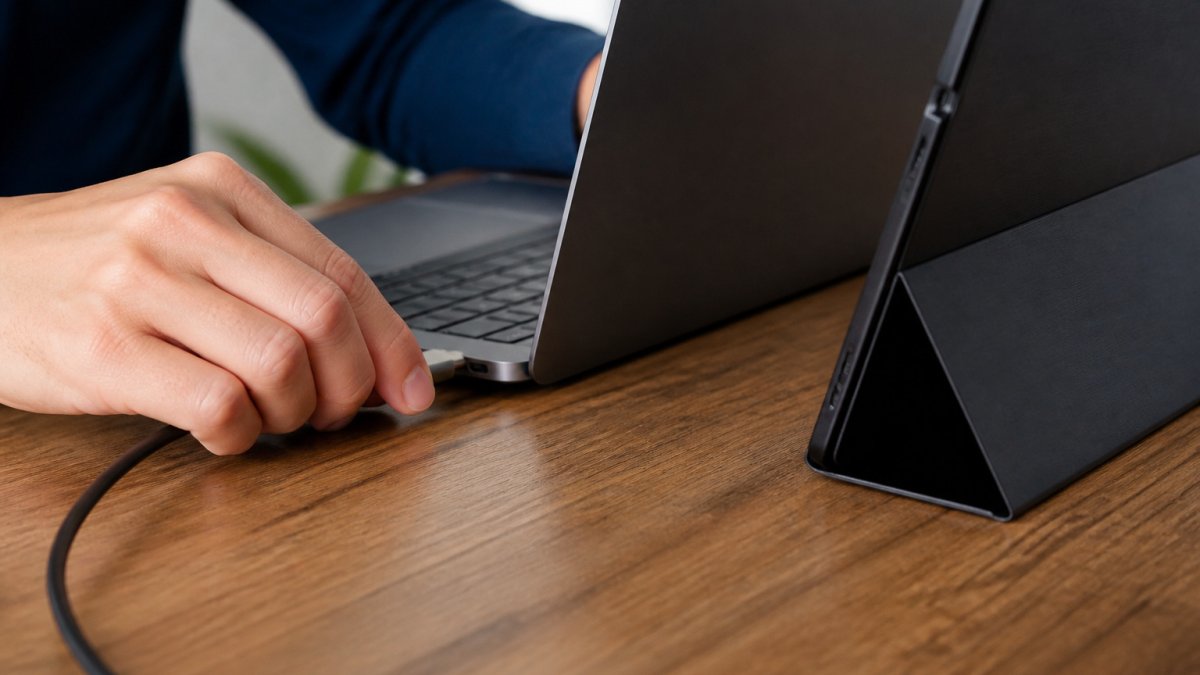
Video-capable cables versus charging-only cables
A video-capable cable has the wiring to send a display signal from your laptop or phone to the monitor. A charging-only cable has only the power wires. Both plug into the same port, so the shape alone tells you nothing.
Look for these signs on the packaging or product listing:
- The listing says "video," "display," or "DisplayPort" in the description
- It names the supported resolutions and refresh rates
- It states a bandwidth or USB version, such as USB 3.2 or USB4
If a listing only says "fast charging," treat it as a warning sign for video use.
Checking your laptop or phone port
Not every USB-C port sends video. Some phones and budget laptops support charging only on their USB-C port. Check your device's specifications for "DisplayPort Alt Mode" or "video output." If that phrase is missing, your port may not support external displays at all.
Watch out: Assuming every USB-C port on your device handles video. Some laptops have one port that does and another that does not, so test the port you plan to use.
Check DisplayPort Alt Mode Support
DisplayPort Alt Mode is the feature that lets a USB-C connection carry a DisplayPort video signal (VESA Releases Updated DisplayPort™ Alt Mode Spec to Bring DisplayPort 2.0 Performance to...).
A cable and its host device both need to support it. A device may offer Alt Mode while the cable does not, or the reverse.
Quick check:
- Device side: the port spec lists DisplayPort Alt Mode or video output
- Cable side: the listing mentions DisplayPort or video support
- Monitor side: the monitor accepts USB-C video input
When all three line up, the setup is far more likely to work.
Match Power Delivery Wattage to the Monitor's Needs
Many portable monitors draw power through the same USB-C cable that carries video (USB Charger (USB Power Delivery)). This is called USB Power Delivery (USB PD), and it is measured in watts. A cable rated for lower wattage can limit power to the monitor, which may cause flicker, dimming, or a blank screen, even when the video signal itself is fine.
How to calculate what your monitor actually needs
Start with the monitor's published power specification. Portable monitors commonly list a draw in watts or in amps at a given voltage. If the listing gives amps and volts, multiply them: a monitor rated at 5 V and 3 A needs 15 W.
Then check what your host device can supply. Laptop USB-C ports vary widely: some deliver only a few watts for accessories, while others can output 15 W, 30 W, or more.
Bus-powered monitors and their power draw
A bus-powered monitor takes all its power from the USB-C connection and has no separate power plug. These monitors are convenient, but they place the entire load on the host device. A common pattern is a bus-powered monitor that works on one laptop port but fails on another, the cable is fine, but the port cannot supply enough current.
If your monitor is bus-powered:
- Use a cable rated for the monitor's wattage and for USB PD, not a charge-only cable with a low current rating.
- Prefer the host port with the highest documented power output; on many laptops that is a specific labeled port, not every USB-C port.
- If the monitor supports an external power input, use it. That removes the host from the power equation and lets the USB-C cable carry video only.
Distinguishing a power problem from a video problem
The symptoms differ in useful ways. A video problem usually leaves the monitor powered on, it shows "no signal," a black screen with the backlight on, or an error message. A power problem often means the monitor shows no signs of life at all, or it flickers and resets. If the monitor has a status LED, watch it during connection: a brief flash followed by nothing suggests power negotiation failed, while a steady light with no image points to the video path.
Cable wattage ratings and e-markers
USB-C cables carry a wattage rating, and higher-power cables include an e-marker chip that tells the devices how much current the cable can safely handle. A cable without the right rating can cap power delivery below what the monitor needs. When a listing states a wattage, for example, 60 W or 100 W, treat that as the cable's safe ceiling, and choose one at or above your monitor's requirement.
Choose a Cable Length That Holds Signal Quality
Cable length affects signal quality, and it affects video far more than charging. Power delivery tolerates longer runs because current flows with relatively little loss, but a high-bandwidth display signal degrades as the cable gets longer. That is why a cable that charges perfectly at three meters can still fail to carry a 4K video signal at the same length.
Passive versus active cables
Passive cables are simple copper wires with no electronics. They are cheaper and work well over short distances. Active cables include circuitry that boosts or equalizes the signal, which lets them carry high-bandwidth video over longer runs. The trade-off is cost and, in some cases, directionality: some active cables are designed to plug in a specific orientation, with the source end and display end marked.
Practical length guidance
There is no single universal limit, because the maximum reliable length depends on the resolution, refresh rate, and cable quality. A common pattern in practice:
- Short passive cables, roughly under one meter, are the safest choice for high-resolution, high-refresh-rate video.
- Medium passive cables can work at lower resolutions and refresh rates, but reliability becomes less predictable as length increases.
- Longer runs, especially at high bandwidth, are where active cables earn their place. If you need a long cable and high-resolution video, choose an active cable rather than hoping a passive one holds up.
Treat any specific length as a starting point, not a guarantee. The same nominal length can behave differently depending on the cable's construction and the devices on each end.
Why the 3-meter question is common
A three-meter cable is a frequent trouble spot because it sits beyond the range where many passive cables reliably carry high-bandwidth video. If a three-meter passive cable works for charging but not for display, that is expected behavior, not a defective cable. For that length with a demanding display, an active cable or a shorter passive cable is the more reliable path.
Checking the stated length limit before you buy
Look for the cable's stated maximum length for video use, not just its total length. Some listings advertise a length but specify a lower limit for full-resolution video. If the listing gives no video length guidance, prefer a shorter cable or an explicitly active one. And when a cable works at one meter but fails at three with the same monitor, the cable length, not the monitor or the port, is the first thing to suspect.
A Step-by-Step Selection Checklist and Troubleshooting
Use this checklist before you buy:
- Your device's USB-C port supports video output or DisplayPort Alt Mode
- The cable is labeled for video, not charging only
- The cable's bandwidth or USB version matches your resolution and refresh rate
If the screen stays blank after setup, try these fixes in order:
- Confirm the cable is plugged into a port that supports video
- Restart the monitor and the host device
- Test a different USB-C cable to rule out a faulty one
- Lower the resolution or refresh rate in your display settings
- Check whether the monitor needs a separate power source
Watch out: Replacing the cable without checking the port first. If the port does not support video, a new cable will not fix the problem.
Before you buy, check these five items against your device, cable, and monitor. To confirm that a listing's stated cable specs are accurate, see How to Verify Online Product Descriptions Before You Buy.
| Check | What to confirm | Why it matters |
|---|---|---|
| Device port | Supports video output or DisplayPort Alt Mode | Charging-only ports cannot drive a display |
| Cable type | Labeled for video, not charging only | Charge-only cables lack video wiring |
| Bandwidth | Matches your resolution and refresh rate | Insufficient bandwidth limits the picture |
| Wattage | Meets or exceeds the monitor's power draw | Low wattage can cause flicker or no power |
| Length | As short as practical, or active for long runs | Long passive cables may fail at high bandwidth |
Order Your Portable Monitor Cable From Pemarch
Once you know which specs you need, you can compare cables against the checklist above. Pricing depends on quantity, dates, and delivery, so check the Pemarch website for current prices or a quote. For guidance on purchasing electronics safely from an online retailer before you order, read How to Buy Electronics Safely Online.
Frequently Asked Questions
What type of USB-C cable do I need for a portable monitor?
You need a USB-C cable that carries video, not a charging-only cable. Look for a full-featured cable that supports DisplayPort Alt Mode and, if the monitor is powered through the cable, enough power delivery wattage for the display. Check the monitor's manual for its input and power requirements, then match the cable to them. Pricing depends on quantity, dates, and delivery, so check the Pemarch website for current prices or a quote.
Does a USB-C cable need to support video to connect a portable monitor?
Yes. A portable monitor receives its picture over the USB-C connection only if the cable and both ports support video output, typically through DisplayPort Alt Mode. A cable that supports only charging and data will charge the monitor or transfer files but will not display an image. If the screen stays blank after connecting, the cable is the first thing to check, followed by the host port's video capability in its specifications.
Can any USB-C cable power a portable monitor?
No. Some portable monitors draw power through the same USB-C cable, and that depends on the cable's power delivery rating and the host port's output. A basic cable may carry enough current to charge a phone but not enough to run a larger monitor reliably. Confirm the monitor's power draw in watts and choose a cable and port rated to deliver at least that much. If the monitor has its own power input, a separate power supply can remove this constraint.
How long can a USB-C cable be for a portable monitor?
Longer cables are more likely to lose signal quality, especially for high resolutions and refresh rates. Short cables are generally the safest choice for a portable setup. If you need a longer run, check whether the cable is active, meaning it includes electronics to boost the signal, and confirm the length limit stated by the cable maker. Do not assume a long passive cable will perform the same as a short one.